
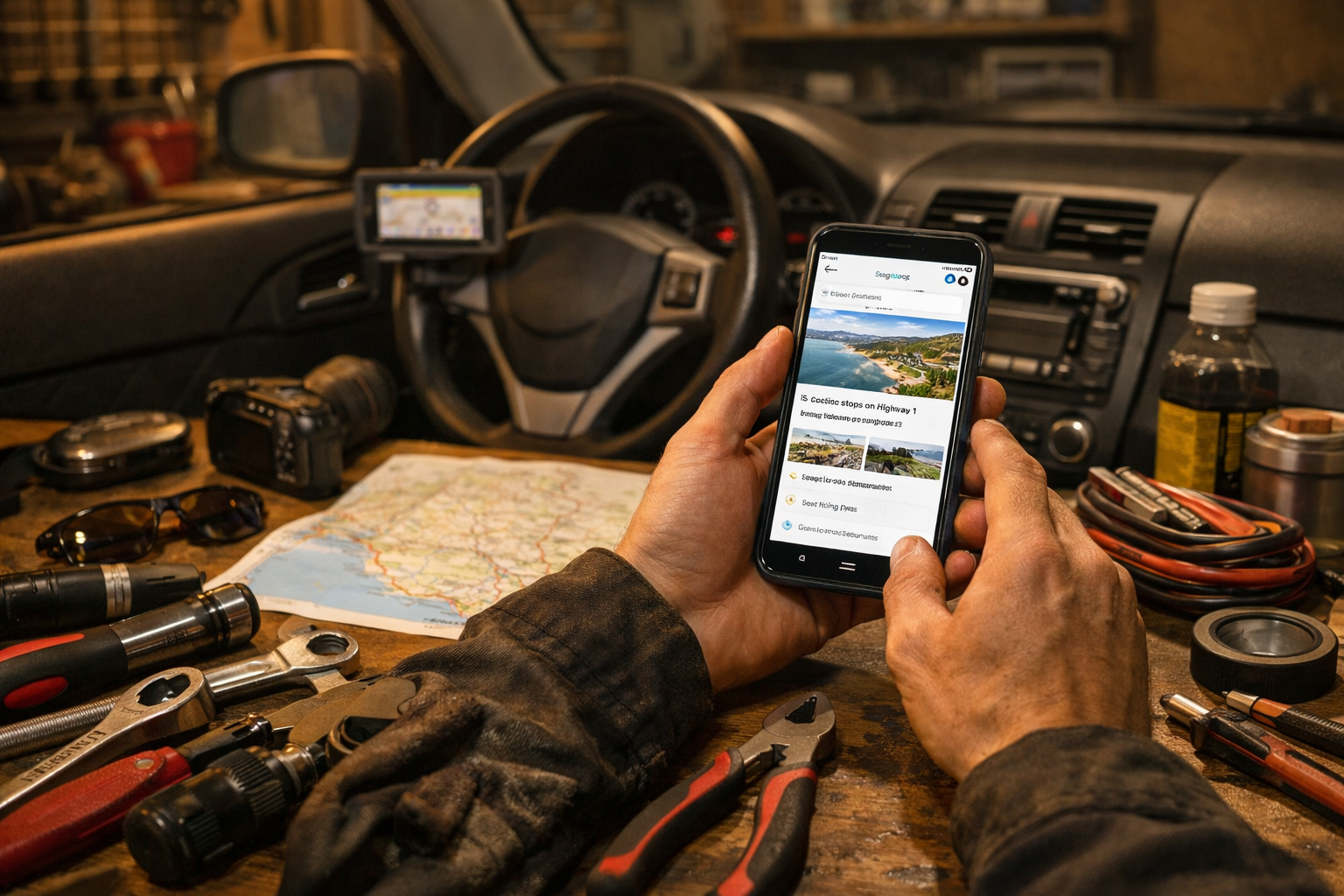
You’re three hours into a road trip, the kids are melting down, the gas light just popped on, and the next exit looks like it belongs in a horror movie. That’s exactly where Google Maps AI search can save your sanity — and your wallet. Instead of guessing where to stop, you can ask for “clean rest stops with good reviews and cheap gas” and actually get useful answers.
I know, I’m a wrench-turner, not a tech bro. But after 20 years running a shop, I’ve learned this: smart planning prevents breakdowns, bad fuel stops, and overpriced highway gas. In this guide, I’ll show you how to use Google’s new AI-powered search to plan smarter road trips, find gas stations and rest stops, and avoid the classic “middle-of-nowhere mistake.”
What You’ll Need
- Tools: Smartphone (iPhone or Android), latest Google Maps app update
- Parts/Materials: Car charger ($15–$25), windshield mount ($20)
- Time: 10–15 minutes to set up; saves hours on the road
- Difficulty: 🔧 (1/5)
- Dealer Cost: $0 vs DIY Cost: $0 — You Save: Priceless frustration and $20–$40 per tank in bad gas choices
Why This Matters
Bad road trip planning costs real money. I’ve seen folks roll into my shop after filling up at a sketchy station with contaminated fuel — $600 to $1,200 in fuel system repairs. Not to mention overpaying 40–60 cents more per gallon at highway exits.
Using Google Maps AI search for smarter road trip planning helps you find gas stations and rest stops with solid reviews, better lighting, and fair prices. It also helps you avoid high-crime areas and poorly maintained stops.
If you’re driving a newer connected vehicle — like a 2026 Toyota C-HR or 2026 BMW X5 — remember your car collects data too. Read up on Vehicle Connectivity Explained: Protect Your Data Now so you know what’s being shared while you’re navigating.
Before You Start
⚠️ WARNING: Never program navigation while driving. Set it up parked, or have a passenger handle it. Distracted driving kills — period.
Make sure your app is updated in the App Store or Google Play. The AI features won’t show up on older versions.
If you’re heading out on a long haul, this is also a good time to check for recalls at NHTSA.gov. You don’t want to discover a brake recall halfway through the Rockies. We’ve also got a quick guide on How to Check Toyota Highlander Recall Status Fast if you drive one of those family haulers.
Step-by-Step Guide
-
Update and open Google Maps.
Tap your profile icon → Settings → About. Make sure you’re on the latest version. -
Enter your destination.
Put in your final stop first. Let Maps build the main route before you add extras. -
Use natural language in the search bar.
Here’s where Google Maps AI search shines. Try typing:
– “Best rated gas stations along my route”
– “Clean rest stops with food and EV charging”
– “Cheap gas near next exit”Pro Tip: Add “open now” if you’re traveling late. I’ve seen too many folks stranded at 11 p.m. staring at locked pumps.
-
Check reviews and photos.
Tap the location → scroll reviews → look at recent photos. If the bathroom looks like a crime scene, keep scrolling. -
Compare gas prices.
Google often displays reported fuel prices. Cross-check with apps like GasBuddy if you’re serious about saving. Over a 2,000-mile trip, picking smarter stops can save $50–$100. -
Add stops strategically.
Tap “Add Stop” and place fuel breaks around 1/4 tank remaining — not when the light’s already on. Running low overheats fuel pumps. I’ve replaced hundreds at $700 a pop. -
Download offline maps.
Profile → Offline Maps → Select area. Cell service drops in rural zones. Offline maps prevent panic.Pro Tip: Download maps before entering mountain ranges or desert highways.
Common Mistakes to Avoid
- Waiting until the fuel light comes on. I’ve seen this fry fuel pumps. Keep it above 1/4 tank.
- Ignoring recent reviews. A station can go downhill fast. Check reviews from the last 30 days.
- Overlooking EV charging compatibility. If you’re driving something like the 2026 Ford Electric Truck, confirm charger type before arrival.
- Trusting only highway signs. Those “Food Next Exit” signs don’t show price or cleanliness.
- Using your phone in your hand while driving. Just don’t. Mount it properly.
When to Call a Professional
If your navigation system keeps freezing, that could be a software issue. Check for updates through your manufacturer’s site or ask the dealer about firmware updates.
Fair price for infotainment software updates out of warranty? $120–$180. If they quote you $400, ask why. Sometimes it’s covered under technical service bulletins.
If your battery dies frequently while using navigation, have it tested. Most parts stores test free. A new battery runs $150–$220 installed in 2025 pricing.
Recommended Products
- iOttie Easy One Touch 5 Mount ($25): Solid grip. What I use in my own truck.
- Anker 30W USB-C Car Charger ($20): Fast charging so your phone doesn’t drop to 2% mid-route.
- WeatherTech CupFone ($40): Great if you don’t want adhesive mounts.
- Portable Jump Starter (NOCO Boost, $120): Not navigation-related, but on road trips? Cheap insurance.
Do This
- Plan fuel stops before hitting 1/4 tank
- Check recent reviews and photos
- Download offline maps
- Mount your phone safely
Don’t Do This
- Search while driving
- Trust outdated gas price listings
- Assume all rest stops are equal
- Ignore recall or maintenance warnings before travel
Look, using Google Maps AI search isn’t about being fancy. It’s about smarter road trip planning, safer stops, and not paying $5.29 a gallon when $4.69 is two miles off the exit. Spend 10 minutes setting it up, and you’ll roll into your destination calmer — and with more cash for burgers.
Got a favorite road trip trick or navigation tip? Drop it in the comments. Stay safe out there — and remember, a $20 repair manual saves a $2,000 repair bill.